To integrate LockTransfer with your Outlook mail client, download and install the LockSelf extension. Read on to find out how to install and use this extension on Outlook.
________________________________________________________________________________________
Download the extension
Go to Microsoft's AppSource Store and search for "LockSelf", or follow this download link for the LockSelf extension
Click "Get it now":
If you have not already done so, log in to your Outlook mailbox:
Install the extension
Save your information, then click "Continue":
Make sure the extension is correctly installed and enabled
Desktop client
- Close your desktop client
- Restart it
- Open a new email
- Check in your toolbar that the "Secure attachments" icon does appear
Web app
- Open the Outlook web app
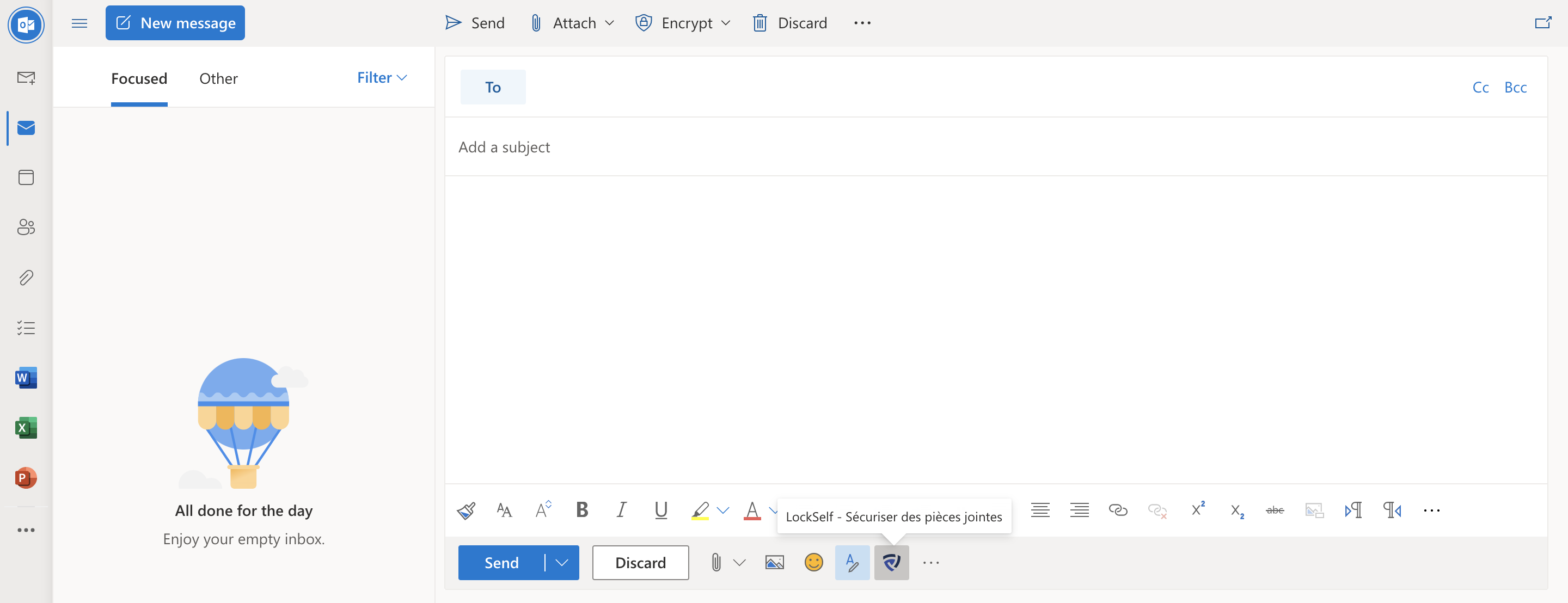
- Open a new message
- Check in your toolbar that the LockSelf icon does appear
Update your extension
Your extension is updated automatically with the new LockSelf features. There is nothing for you to do.
Extension compatibility
From Windows 10 20H2 onwards (available since October 20, 2020):
Outlook 2013 or later
Outlook on Windows (Microsoft 365)
Outlook on the web
From macOS Mojave onwards for:
Outlook 2016 or later
Outlook 2019 or later
Updated